How to add page numbers to a PDF
Inserting page numbers
Open your PDF in pdfMachine.
Choose 'Insert Page Number' from the 'insert drawing menu'.
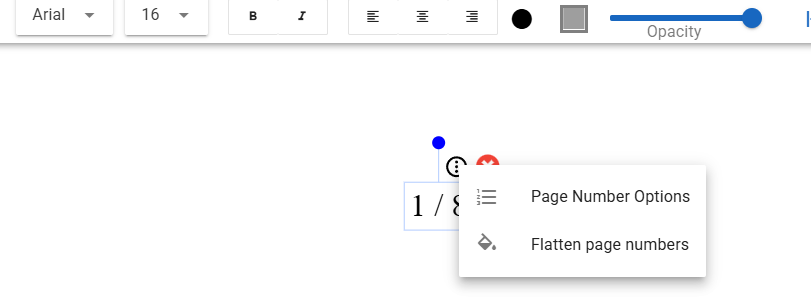
If the PDF already has page numbers that were inserted by pdfMachine the button will become 'Edit Page Number' and take you into the Page Number Options menu. The page number itself will be selected and be able to be moved, modified or deleted. If you don't wish the page numbers to be able to be modified you can flatten them into the PDF.
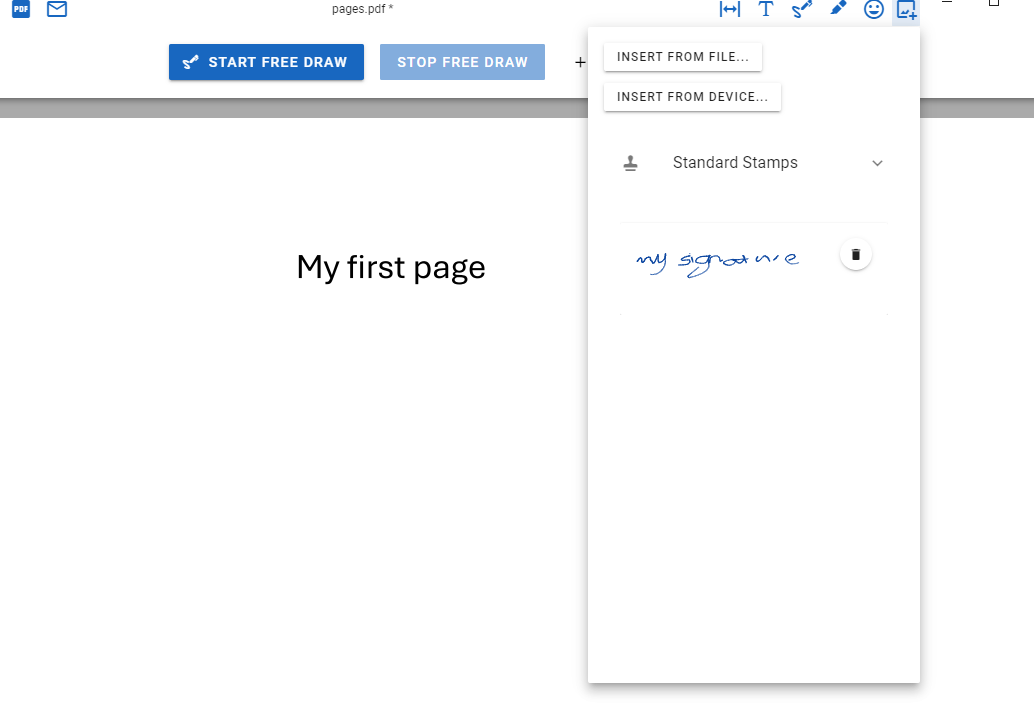
The page number options window provides options for the format and style of the page number.
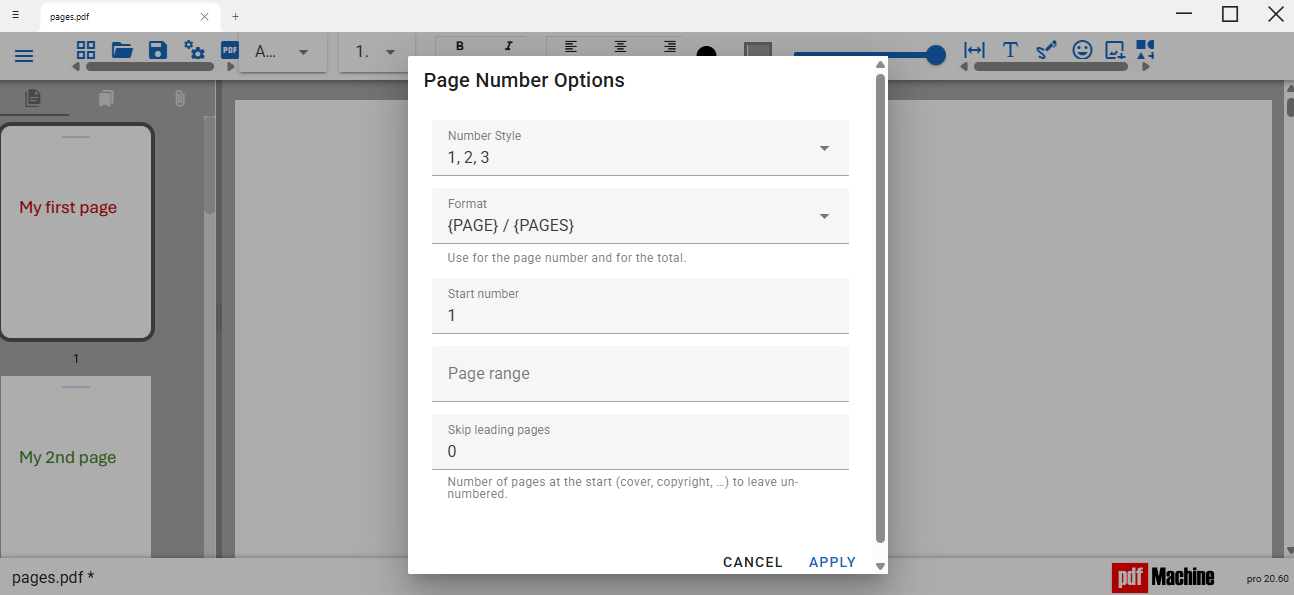
Choose your format and apply the page numbers. The page numbers are automatically inserted onto the PDF. You can select the page number and move it to change the position, font, color and other formats and styles. If you add, delete or move pages pdfMachine will either correct the page numbering or request you to reapply the page numbers.
The Page Number Options window
Page numbers can be represented in a variety of ways
Number Style
Choose your desired page number style from a numeric, Roman, or capitalized Roman, or BATES style.
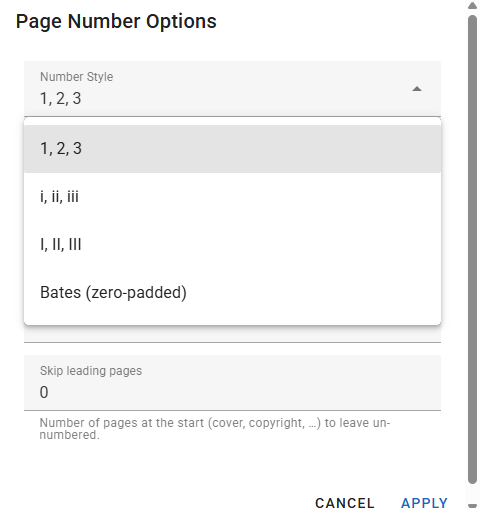
Bates Numbering
Bates numbering (also known as Bates stamping) is a method of assigning a unique, sequential identification code to every page. Number Padding: Zero-padded sequences ensure consistent length.
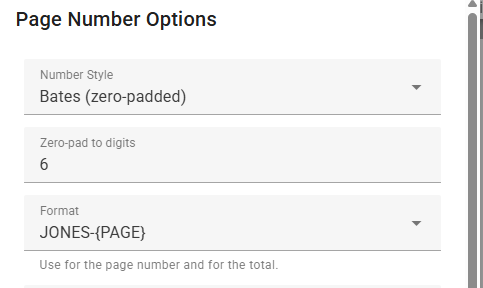
For example, choosing a Bates style with a format of JONES-{PAGE} that is zero-padded to 6 digits will result in the page numbers looking something like JONES-000001, JONES-000001 ... JONES-000481.
Format
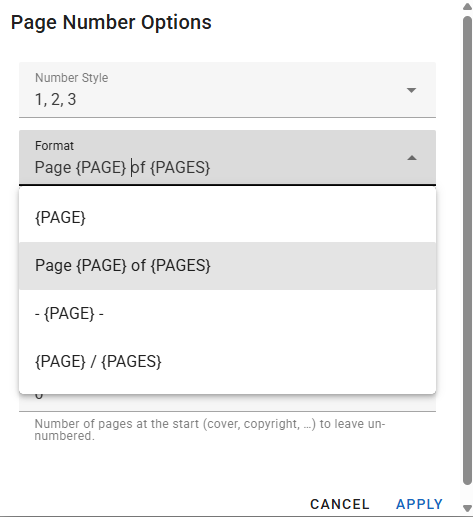
Choose the format of the page number. There are a few options available by default. You can also edit those to make your own custom form. Choose whether you want just the page number or the page total as well.
Start Number
Choose which number should be used as the starting number. This can be useful in cases where you are providing a chapter or a sub-section of a larger document. For example, your research paper is scheduled to appear on pages 45 through 60 of a journal, you will set your PDF's starting page number to 45.
Page Range / Skip Leading Pages
Choose what the range of pages that should be numbered is. Leaving the Page range blank defaults to 'All'. The Pge Range works in conjunction with 'Skip leading pages' which will allow the numbering to start the specified number of pages in. This is useful if you have something like a cover page.Editing page numbers
You can use the 'Edit Page Number' button on the 'Insert drawing menu' window to select an existing page number for formatting. The Page Number Options window appears. When selected he page number can be moved, deleted, or formatted. You can flatten it into the document so that it can no longer be changed. The text formatting toolbar appears to allow you to change the style of the page number text.