Emojis, Shapes and Hyperlinks
Hyperlinks
The 'insert annotation' menu item allows you to place a hyperlink onto the PDF.

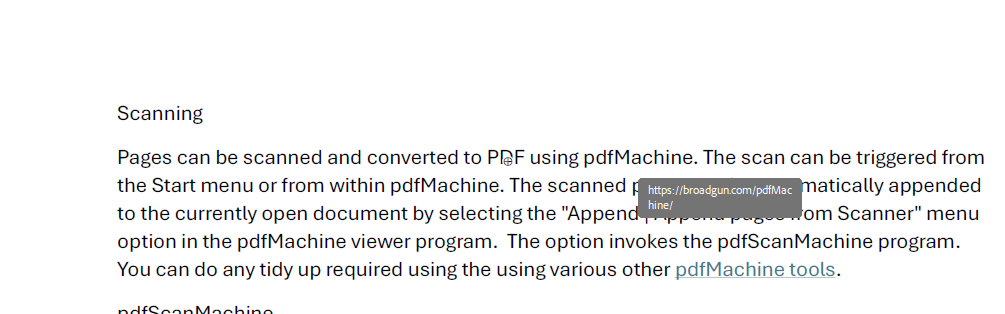
The hyperlink can refer to a website or to a page within the PDF. Use the prefix 'https://' to refer to a website. Just enter the page number if you want the hyperlink to jump to a page within the PDF.
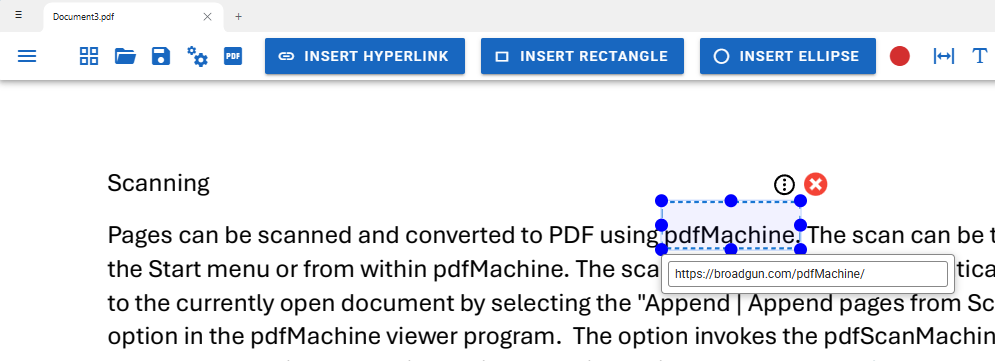
Once inserted and saved the annotation appears as a clickable link in the PDF when you hover over it.
Emojis
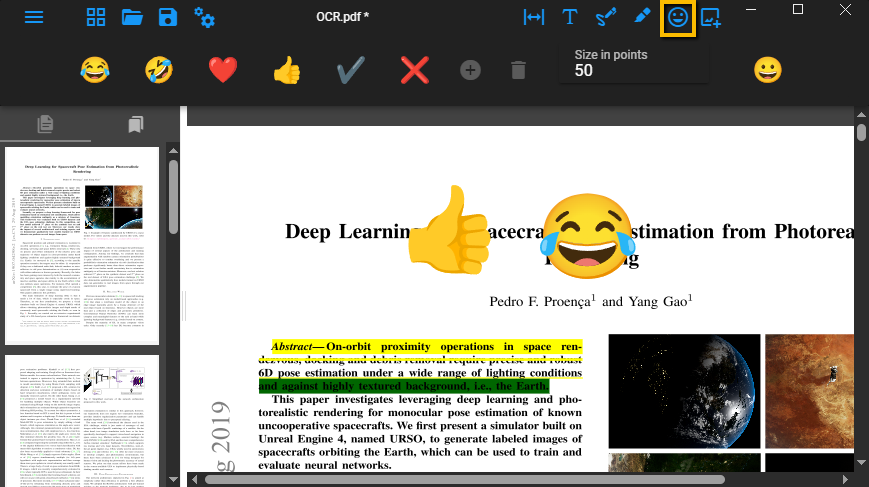
The emoji menu item allows you to insert an emoji annotation onto the PDF. There is a wide selection of emojis to choose from. Build a list of your commonly used emojis by clicking the 'plus' with an emoji selected.
Some simple shape sketches are also available here. Use the shape annotation if you want a more formal rectangle or ellipse.
Shapes
The 'insert annotation' menu item allows you to place a rectangle or ellipse onto the PDF.
You can select the color of the shape.