pdfMachine SDK Installation - Service
Before installing the service, think very hard as to whether this is the way to go for you, as it adds a lot of extra configuration steps. It is usually necessary if your application is called from a web server to avoid all sorts of security problems, as the guest internet account does not have enough permission to run an app such as Word and use a printer.
Note regarding Microsoft Office documents:
Microsoft Office apps are not designed to work properly from a service account. Windows Vista, Windows 2008/2012 server and Windows 7 services cannot run Microsoft Office Applications. They dont work due to "session 0 isolation". You will need to run the pdfMachine SDK under a normal user account, not a service. You will have the same problem with any software that uses Microsoft office.
1. Download
Download and unzip the SDK to a suitable directory.
e.g. c:\pdfServMachine
2. Install the service
From the command line, run:
pdfServMachine /Service
OR: If you want the SDK to run the SOAP web service as a windows service then from the command
line, run:
pdfServMachine /Service /WebService /Port 3981.
3. Set the logon account for the service
Run the services applet.
Launch the services applet. e.g. Start->run then type:
services.msc
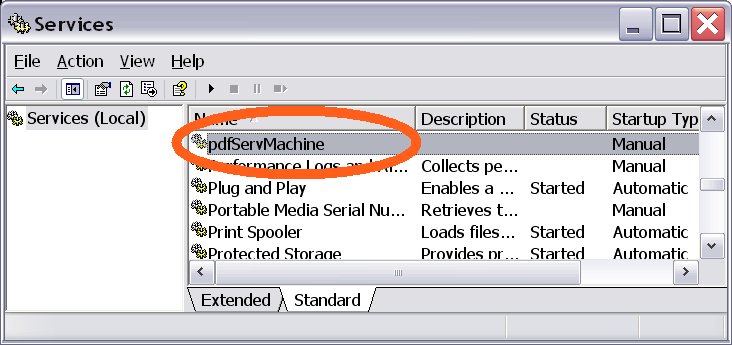
Select the pdfServMachine from the list of services.
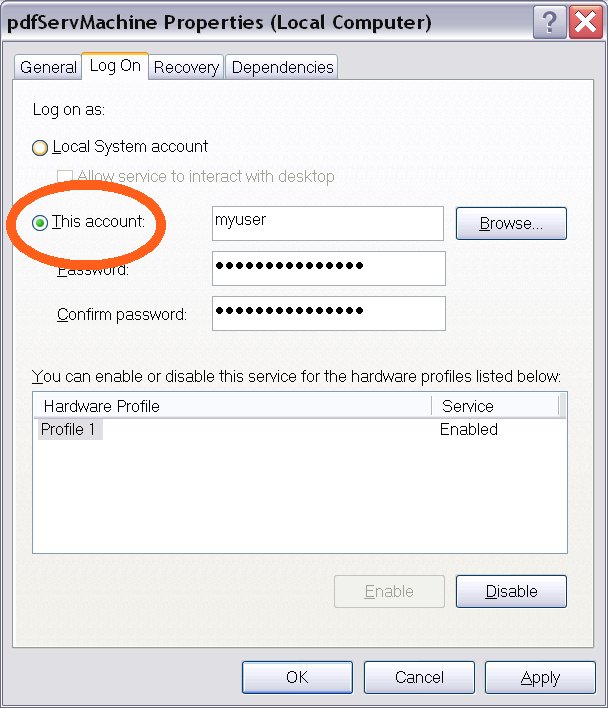
Double click on the service, then switch to the logon tab.
Select "This Account" and enter in a user with Administrator rights.
Click OK.
4. Configure security with dcomcnfg.exe
e.g. Start->run then type:
dcomcnfg
Find the pdfServMachine entry, as shown below.
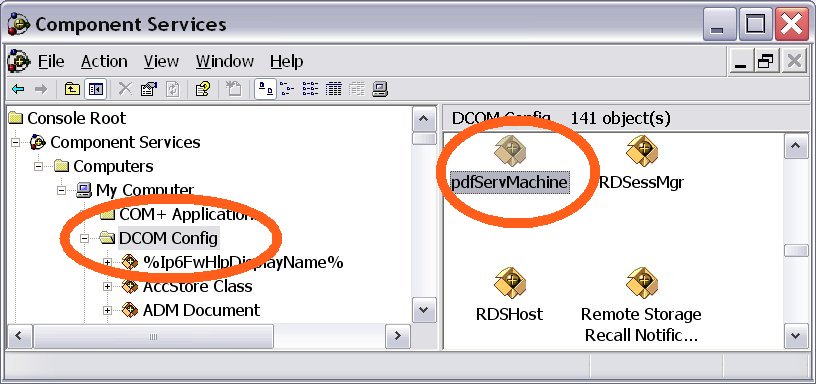
Right click on the pdfSerMachine icon, select Properties, then select the "Security" tab, as shown below.
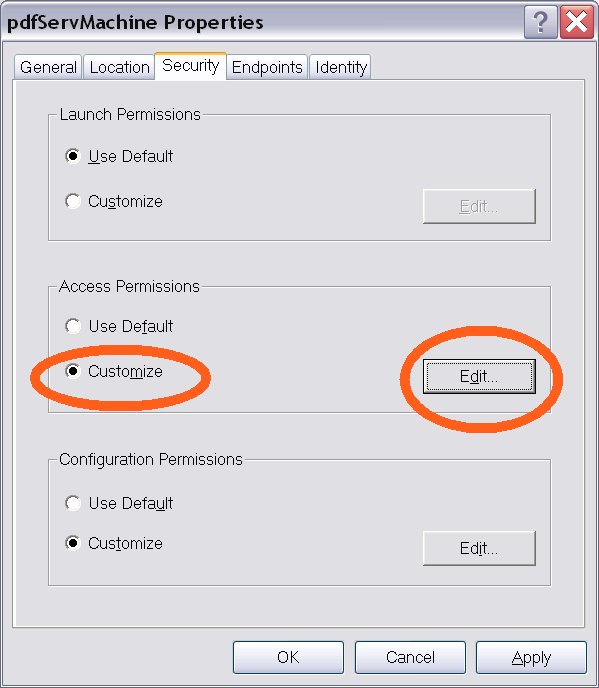
Edit the "Access Permissions" to include the user account or group that matches the account the service will be run under. Apply the changes and exit dcomcnfg.
5. Start the service.
From within the services.msc view, optionally set the "start up" type of the service to Automatic, then start the service.